Welcome: what GERP ODOO for Windows is
GestioERP for Windows opens your GERP ODOO in its own window, opens the POS in full screen and carries the print bridge inside: whatever is sent to print comes out on the office and till printers, with no dialogs.
In this course you will see how the computer is installed and linked, how printers are set up, twins, per action and per user, and how each POS device is connected: the receipt printer, the kitchen and bar ones, the drawer, the scale, the screens and the barcode scanner.
What you will see
- GestioERP for Windows with GERP ODOO: The GestioERP desktop application for Windows 10 or 11: it opens your GERP ODOO in its own window and the POS in full screen with the «TPV» card, prints without dialogs through the print bridge it carries inside and, if the internet goes down, the till PC acts as the local server for the POS. There are two variants: the standard one and the POS one.
- Direct printing (Windows Print Bridge): Print invoices, delivery notes, orders, quotes and labels on the office Windows printers (or network printers by IP) without opening the PDF, with the GestioERP Print Bridge for Windows: computers with a key, twin printers, printer per action and per user, «Print on the PC», job history and an ordered copy on the computer.
- Labels by direct printing: The labels go out through the GestioERP Print Bridge for Windows to the roll printer (Windows or network by IP) of the office computer, without a dialog: new «Direct printing» connection in the label printers. It is installed only with Labels and Direct printing.
- The POS and hospitality: printers and devices: How each device connects to the GERP ODOO POS: the receipt printer, the kitchen and bar printers per zone, the cash drawer, the scale, the customer display, the kitchen and pick-up screens, the barcode scanner, the tablet or handheld with the GERP ODOO POS app and what is printed when there is no internet.

▶ In motion: from download to first print, step by step.
- Download: gerpodoo.com › Downloads: the standard one or the POS variant.
- Install: Windows 10 or 11, no administrator rights; it updates itself.
- Your GERP ODOO: the address, your user and your password: the session stays on the PC.
- Link the PC: «Register this PC»: it shows in Direct printing › Computers.
- Print: invoices, receipts and order tickets, with no dialog, on the PC's printers.
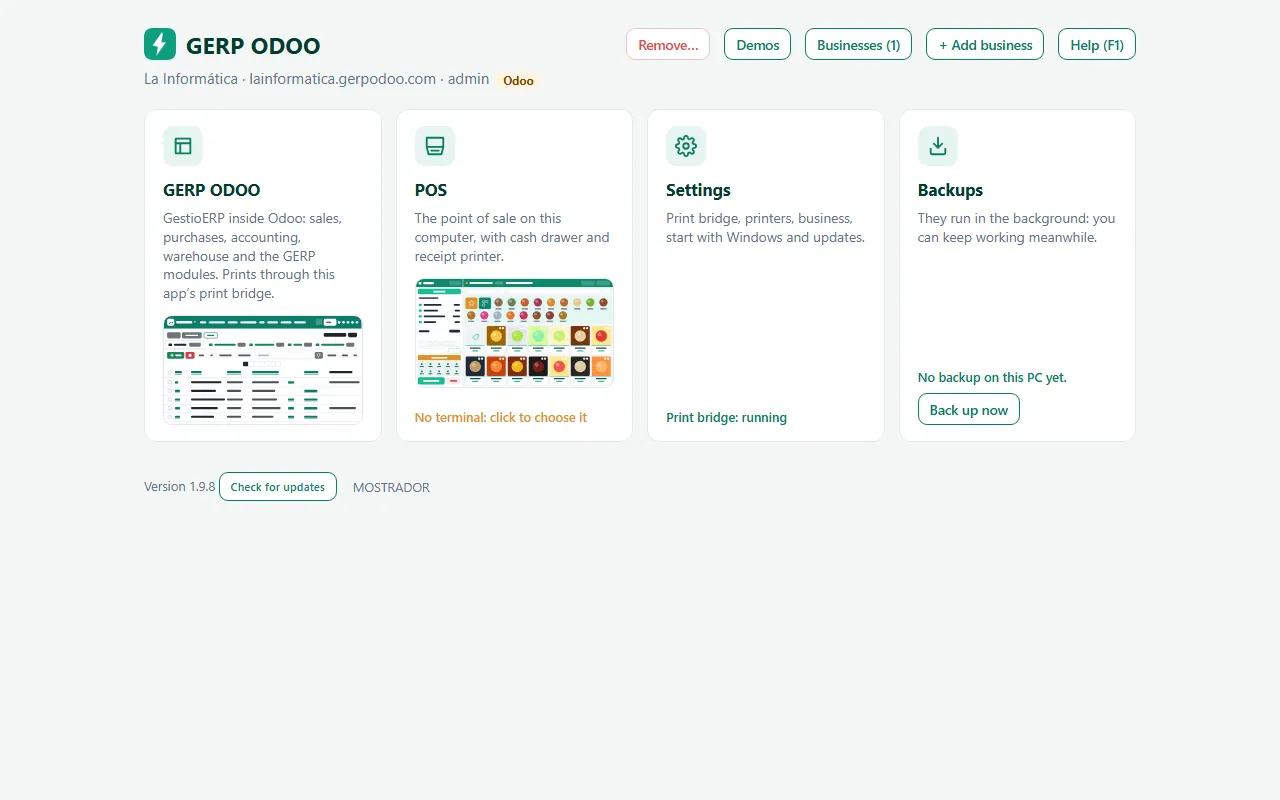
GestioERP for Windows with GERP ODOO from start to finish: installing it, adding your GERP ODOO, the POS in full screen, the print bridge and every POS and hospitality device.
There are no comments for now.
to be the first to leave a comment.