What it is and how it works
Print invoices, delivery notes, orders, quotes and labels on the office Windows printers (or network printers by IP) without opening the PDF, with the GestioERP Print Bridge for Windows: computers with a key, twin printers, printer per action and per user, «Print on the PC», job history and an ordered copy on the computer.
Video course with Ximena and Marc
Press «Empezar» (Start) and turn the volume up: they show you with voice-over and subtitles (in Spanish), in about 3 minutes.
Open full screen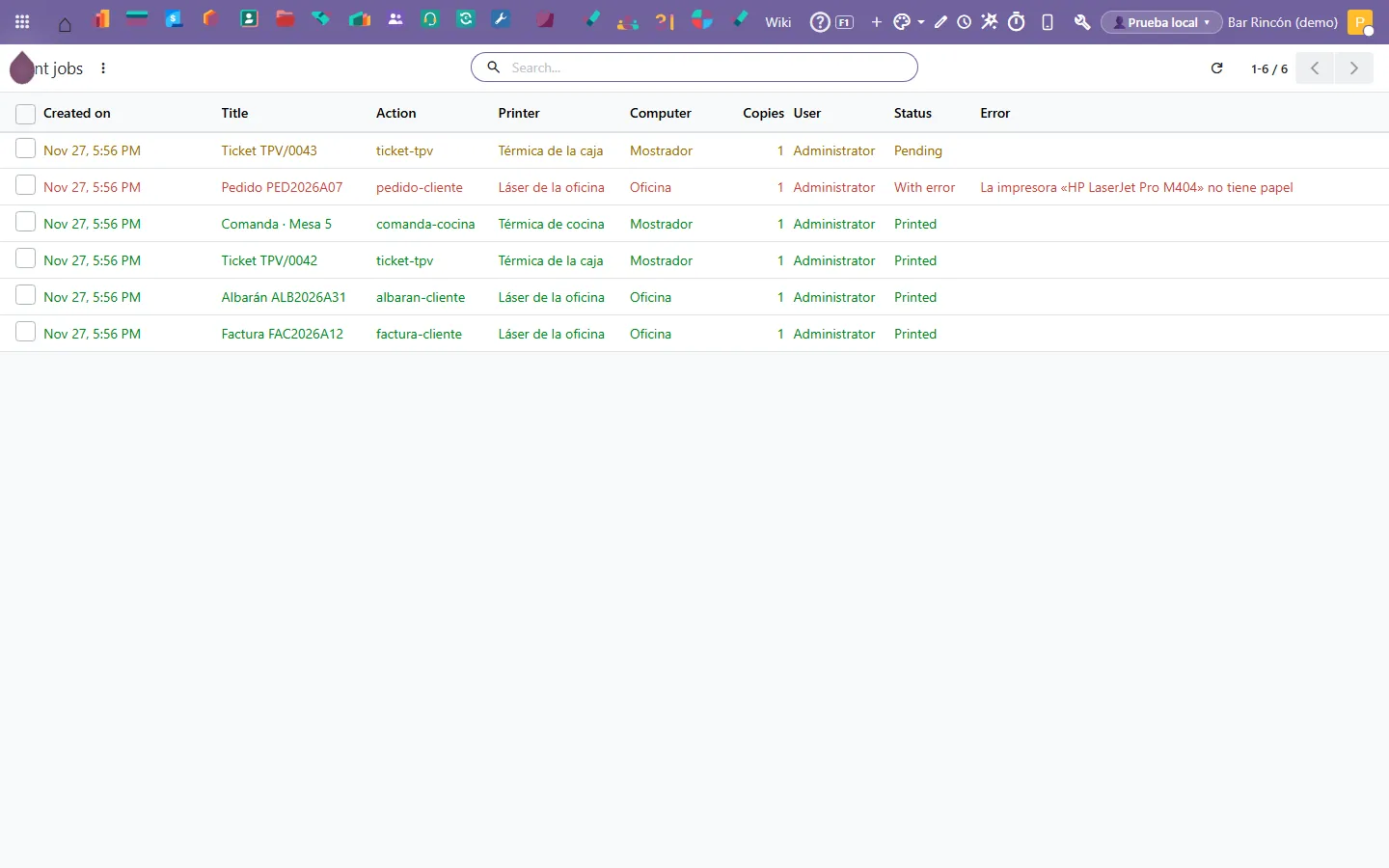
Direct printing sends Odoo documents (invoices, delivery notes, orders, quotes, labels…) to the office Windows printers without opening the PDF or going through the print dialog. It is done by the GestioERP Print Bridge, which GestioERP for Windows already includes: the computer asks the server every few seconds whether there is anything to print (no ports need to be opened), picks up the PDF and prints it.

▶ In motion: what it is and how it works, point by point.
- 1Someone presses «Print on the PC» on an invoice, order or delivery note (or a module sends its document): Odoo generates the PDF.
- 2The PDF is queued as a Pending job assigned to the printer that corresponds to the action and the user.
- 3GestioERP Print Bridge for Windows, on the computer of that printer, picks up the job and reports the result: Printed or With error.
- 4The printer can be a Windows one (with its exact name) or a network one by IP, which the bridge prints raw without installing it in Windows.
How it is done
- Install GestioERP for Windows on the computer that has the printer (gerpodoo.com › Downloads).
- Add your GERP ODOO with its address, your user and your password, and in the Printing step choose the A4 printer.
- As an administrator, press «Continue» (or Settings › Print bridge › «Register this PC»): the computer is added to Computers with its printer.
- Check in Documents › Direct printing › Computers that it shows «Connected».
- Open an invoice and press Actions › Print on the PC.
There are no comments for now.
to be the first to leave a comment.