GERP ODOO Course
Completed
Contacts
Customers, suppliers and contact persons.
Video course with Ximena and Marc
Press «Empezar» (Start) and turn the volume up: they show you with voice-over and subtitles (in Spanish), in about 3 minutes.
Open full screen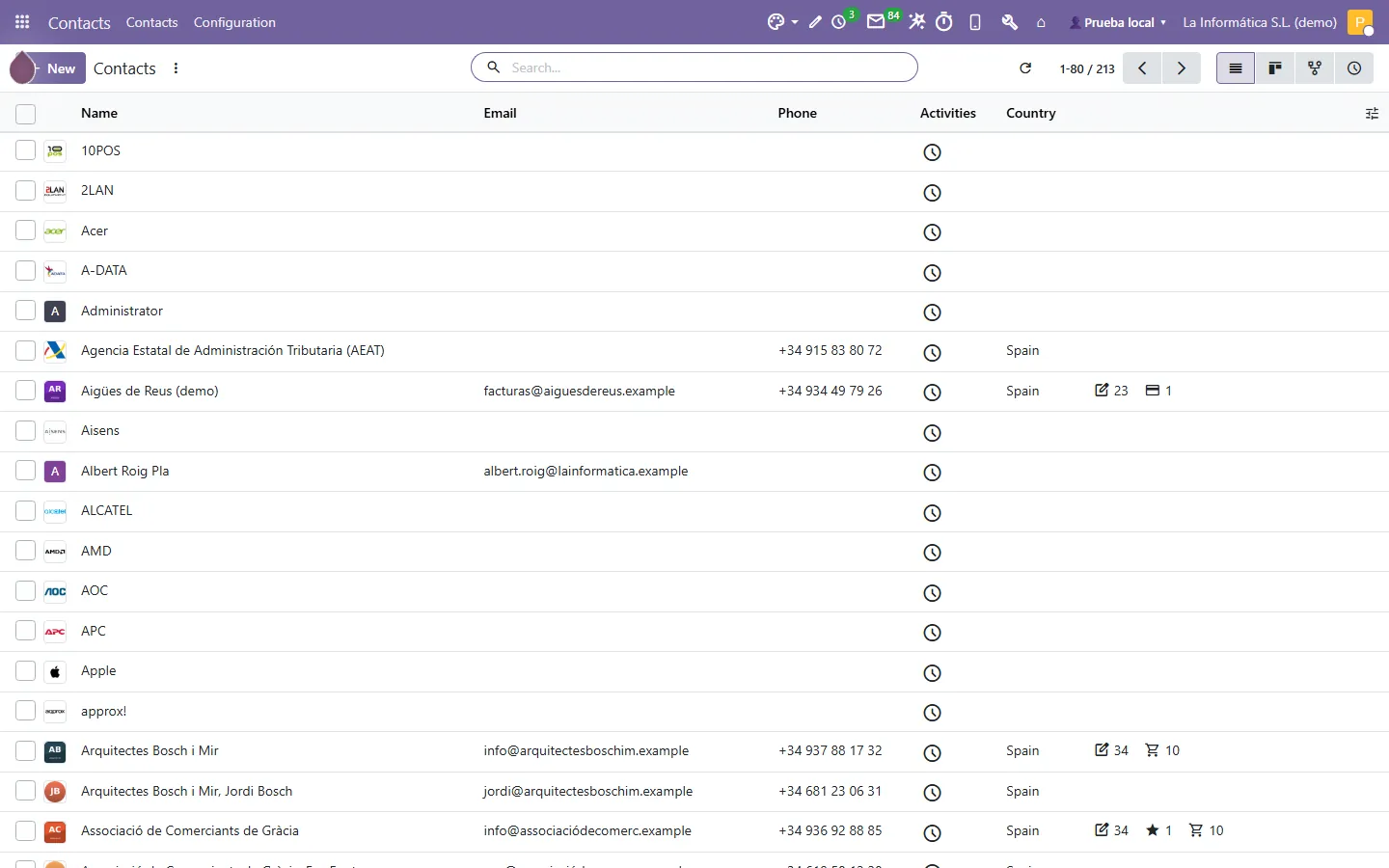
1. Master data
Home › Master data: customers, suppliers, products, families, attributes, warehouses, carriers and payment terms, each in its own tab.

▶ In motion: master data, point by point.
- 1The figures of the area; press one to see its list.
- 2The buttons for what is done most (new document, scan…).
- 3The tabs: each one is a list (quotes, orders, delivery notes, invoices…).
- 4The search box searches in the open tab (number, customer, tax ID…).
- 5The quick filters of the tab with their counter.
- 6The table: press a row to open it; the eye shows the PDF in a window.
2. The contact people
Contacts tab.
3. The shipping addresses
Delivery address.
4. The contact labels
Tags.
5. The customer's bank accounts
Bank accounts.
6. The customer's salesperson
Salesperson.
7. Merge contacts
Action › Merge.
8. Archive a customer
Archive.
Frequently asked questions
How do I add a customer?
Home › Master data › Customers › New: name, VAT, address and email.
How do I add a person to a company?
Contacts tab.
How do I add a delivery address?
Delivery address.
How do I tag customers?
Tags.
How do I set the customer IBAN?
Bank accounts.
How do I assign a salesperson?
Salesperson.
How do I merge duplicates?
Action › Merge.
How do I deactivate a customer?
Archive.
Why can't I see Contactos?
If you can't see it, your internal user lacks the «maestros» permission: the administrator grants it in Home › Internal users.
Customers, suppliers and contact persons.
There are no comments for now.