GERP ODOO Course
Completed
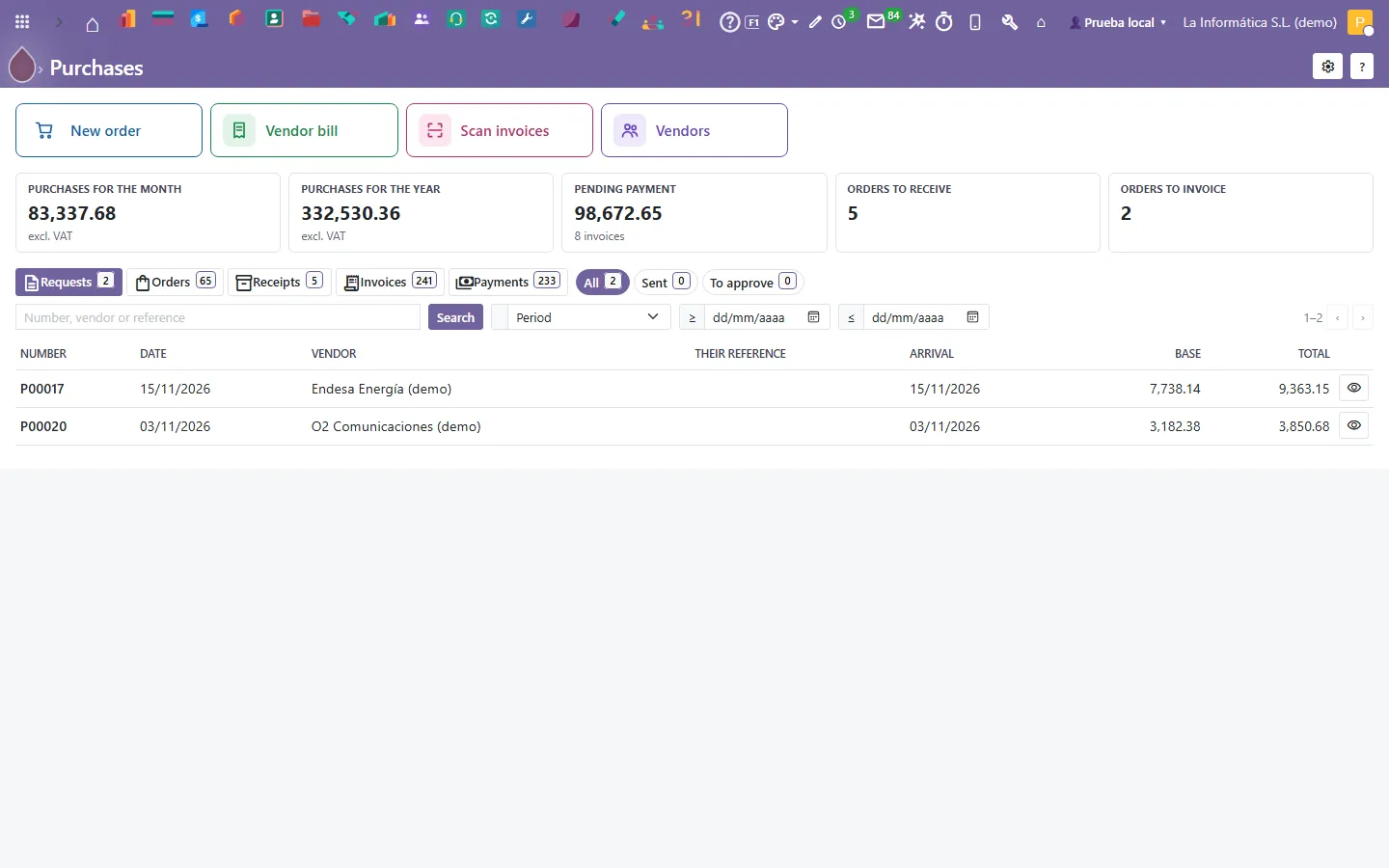
The Purchases dashboard
Home › Purchases. What this dashboard has, as it is in this GERP ODOO.

▶ In motion: the Purchases dashboard, point by point.
- 1The Purchases figures. Press one and the list that explains it opens.
- 2The buttons for what is done most. Each one is given or removed in Internal users.
- 3The tabs: each one is a list. Here it starts at «Requests».
- 4The search box searches in the open tab: number, supplier or reference.
- 5The quick filters of the tab, with their counter.
- 6The table: ↑ ↓ to move, Enter or a click to open the row.
The figures
- Purchases of the month
- Purchases of the year
- Pending payment
- Orders to receive
- Orders to invoice
The buttons
- New order
- Supplier invoice
- Scan invoices
- Suppliers
Each button is a permission: Home › Internal users › Purchases.
The tabs
| Tab | It is searched by | Filters | Columns |
|---|---|---|---|
| Requests | Number, supplier or reference | All, Sent, To approve | Number, Date, Supplier, Their reference, Arrival, Base, Total |
| Orders | Number, supplier or reference | All, To receive, To invoice, This month | Number, Date, Supplier, Their reference, Arrival, Base, Total, Invoicing |
| Receipts of goods | Number, order or supplier | To receive, Ready, Done, All, Billable, Non-billable | Number, Planned, Contact, Source, Status |
| Invoices | Number, supplier or tax ID | All, Pending items, Overdue, This month, In draft | Number, Date, Supplier, Reference, Due, Base, Total, Pending, Status |
| Payments | Number or supplier | All, This month | Number, Date, Supplier, Journal, Concept, Amount, Status |
| ↓ from the search box | Go down to the table |
| Enter | Open the row |
| PgDn / PgUp | Skip 10 rows or a page |
| Esc | Back to Home |
Figures, buttons and tabs of Purchases.
Rating
0
0
There are no comments for now.
Join this Course
to be the first to leave a comment.