TimeTracker (time control)
Clock in, breaks and out from the computer, the phone or a kiosk with PIN or QR; hours worked against the calendar; absences and holidays; Spanish public holidays; employee documents; sealed clockings with correction and consent, and a PDF time log to sign.
Video course with Ximena and Marc
Press «Empezar» (Start) and turn the volume up: they show you with voice-over and subtitles (in Spanish), in about 3 minutes.
Open full screen
▶ In motion: a day of clocking, step by step.
- Clock in: the worker clocks in from the computer, the phone or the kiosk.
- Pause: clock the pause and the return.
- Exit: clock out: the workday is done.
- Log: the month's time log comes out as a PDF.
1. Clock in
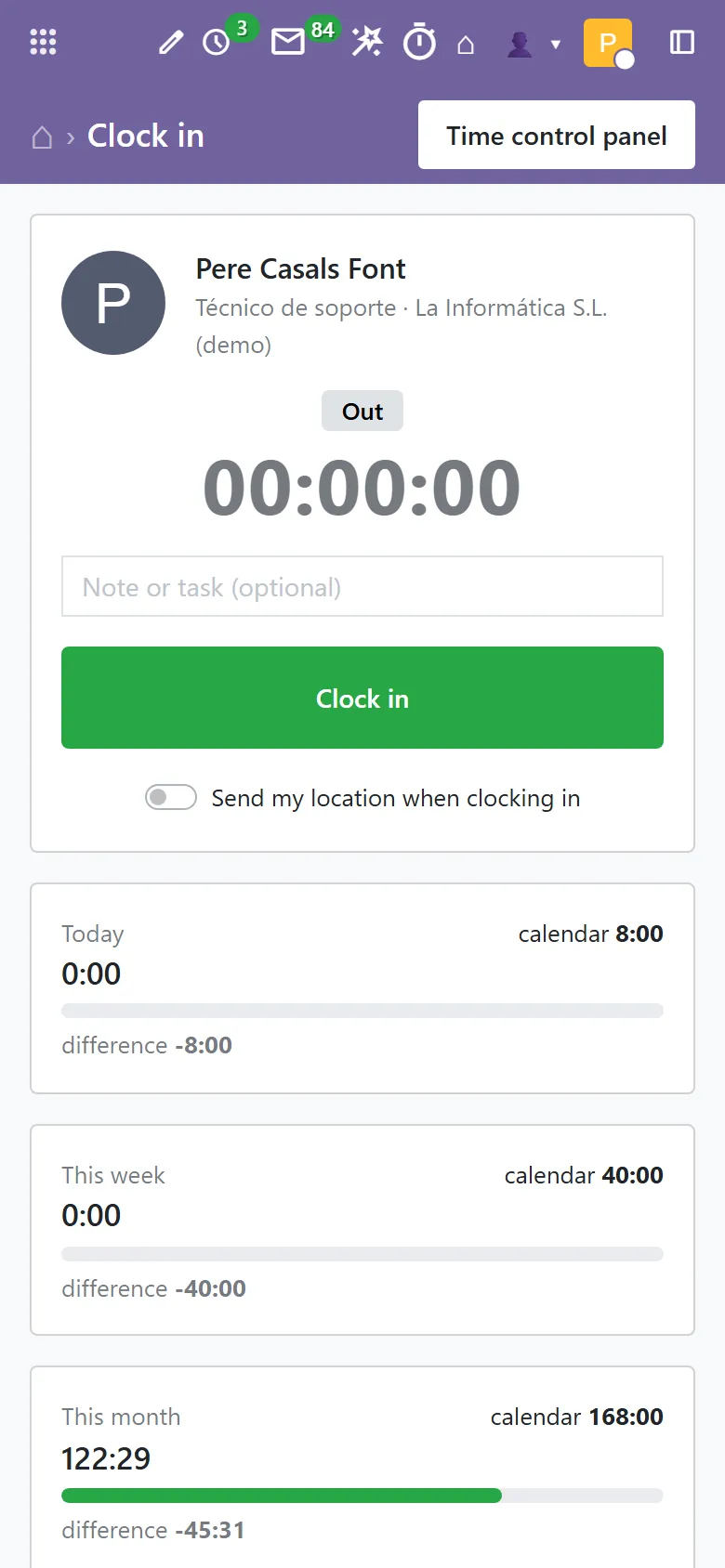
The screen of each worker, on the computer and on the mobile.

▶ In motion: clock in, point by point.
- 1Who clocks in: the employee linked to your internal user.
- 2The timer of the open clocking (without breaks) or the break time.
- 3Clock in, break (rest, meal or personal), return and clock out; with location if you tick it.
- 4Hours worked against those on the calendar (excluding holidays and absences).
- 5The latest clockings, the month's sign-off and your PDF record.
- 6Request holidays or an absence and see their status.
- 7The documents the company lets you see (contract, payslips…).
How it is done
- TimeTracker › Clock in (the same screen on the phone).
- Press «Clock in»: the timer starts.
- For a break, choose the type (rest, lunch or personal), press «Pause» and, when you return, «Back to work».
- At the end of the day, «Clock out»: the clock-in is closed and sealed.
- In My absences and vacation, «Request» to ask for days off; in My clock-ins, «I agree» and «My record of the month (PDF)».
2. Time tracking dashboard
The start screen for whoever runs time control. At the top, the TimeTracker buttons (Clock in, Hours report, Time log (PDF), Open the kiosk, Worker app, Load holidays and Assign vacation); below, the figures: who is working now and how many are on a break, the hours of the month, the absences to approve and the clock-ins corrected this month. At the bottom, the tabs Clock-ins, Absences, Employees, Documents and Holidays, each with its filters, its search box and the period.


How it is done
- TimeTracker › Time control panel (or the TimeTracker box on Home).
- Look at the figures: «Working now», «Hours this month», «Absences to approve» and «Corrected this month»; clicking a figure opens the list behind it.
- In the Clock-ins tab, filter by «Today», «Working», «This week», «This month», «Corrected» or «Without agreement»; the Record column says whether each clock-in is sealed, corrected or does not match.
- In the Absences tab, «To approve» shows what is still to be decided and «Upcoming», the holidays ahead.
- Employees shows who is in and who has no internal user yet; Documents and Holidays, their own lists.
3. Clockings
All the clockings with entry, exit, break, hours, source and note; in a pivot table, the hours per employee and month.


How it is done
- TimeTracker › Clock-ins: each clock-in with in, out, break, hours, source (computer, phone or kiosk) and note.
- Filter with «Working», «Corrected», «Without agreement», «From mobile» or «From the kiosk».
- Switch to the pivot view to see the hours by employee and month, or to the graph.
- Open a clock-in to see its «Working-day record» tab: the breaks, the seal and the corrections.
4. Stamp, correction and acceptance
When it is closed, each clock-in is sealed (HMAC-SHA256 chained per employee). A sealed clock-in cannot be changed or deleted: it is corrected with a reason and the trail stays. If someone changes the database underneath, it shows in red («the seal does not match»). The worker gives their agreement for each month. On the clock-in form, the «Working-day record» tab shows the source, whether it is sealed and intact, when it was sealed, the agreement, the breaks and the list of corrections (when, who, reason, before and after).


How it is done
- TimeTracker › Clock-ins and open the wrong clock-in.
- In the «Working-day record» tab check that it is sealed and intact and look at its breaks.
- Press «Correct»: enter the right in, out and break minutes, and the reason (e.g. «Forgot to clock out»).
- Press «Correct» in the window: the clock-in is marked as corrected, and what it was, the new values, who and when go to TimeTracker › Corrections, which cannot be changed or deleted.
- The worker gives their agreement again from Clock in › My clock-ins with «I agree».
5. Absences, holidays and public holidays
Absences are Odoo's, with the GestioERP types (personal, medical, family, legal reasons…). The year's vacation is assigned in one go and Spain's public holidays are loaded by region and town. The calendar hours no longer count holidays or approved absences.


How it is done
- The worker requests the absence in Clock in › My absences and vacation › «Request»: the reason, from and to; it stays pending approval.
- Whoever manages approves or refuses it in TimeTracker › Absences and holidays (or in the Absences tab of the panel, filter «To approve»).
- To give everyone their vacation days in one go: TimeTracker › Configuration › Assign the year's vacation (year, days, type and employees) and «Assign».
- For public holidays: TimeTracker › Configuration › Load Spain's holidays; choose the year, the region and the town, check the list and press «Load».
- Any missing ones are added in TimeTracker › Configuration › Holidays; the year's holidays appear in the Holidays tab of the panel.
6. Reports and time record
Hours per employee for the period against the calendar, and the time log in PDF to sign, which must be kept for four years. The report gives, per worker, the hours worked, the calendar hours, the difference, the breaks, the days worked and absent, and the warnings: clock-ins without clock-out, corrected, with a seal that does not match or without agreement.


How it is done
- TimeTracker › Hours report (or the panel button).
- Enter the period (from and to) and, if you like, the employees; empty means all.
- Press «View the hours»: one row per employee appears, and the «Clock-ins» button on each row opens their clock-ins.
- For the record to be signed: TimeTracker › Time log (PDF), the period and the employees, and «Time log (PDF)»: one page per worker with each day, the breaks, holidays and absences, the totals and the signatures.
- Each worker gets their own from Clock in › «My record of the month (PDF)».
7. Permissions
In Internal users: «Clock in (myself)» for all workers; «TimeTracker» to see everyone; «Manage» to correct, approve absences and configure; and each panel button. Also, each employee is linked to their internal user on their form (Settings › «Internal user (clocks in as)»): that way, when they log in, they clock in as that employee.

How it is done
- Users › Internal users and choose the person in the list.
- In «What they can see in this company», tick «Clock in (myself)» if they only need to clock in.
- For whoever runs time control, tick «TimeTracker» and open the section with the arrow: one permission per button (Clock in, Hours report, Time log (PDF), Open the kiosk, Worker app, Load holidays, Assign vacation) and «Manage» to correct clock-ins, approve absences and configure.
- Press «Save». Whatever is not ticked does not appear in their menu or panel.
- On the employee form › Settings, set their «Internal user (clocks in as)».
Frequently asked questions
How do I clock in?
TimeTracker › Clock in: «Clock in» starts the timer; «Pause» and «Back to work» for breaks, and «Clock out» when you finish. The same screen works on the phone.
How do I take a break?
In Clock in, choose the type (rest, lunch or personal) and press «Pause»; when you return, «Back to work». Breaks are deducted from the worked hours.
Can I clock in from my phone?
Yes: open GestioERP on your phone, identify yourself and open TimeTracker › Clock in. If you tick «Send my location», clock in and out store where you were.
How does the kiosk work?
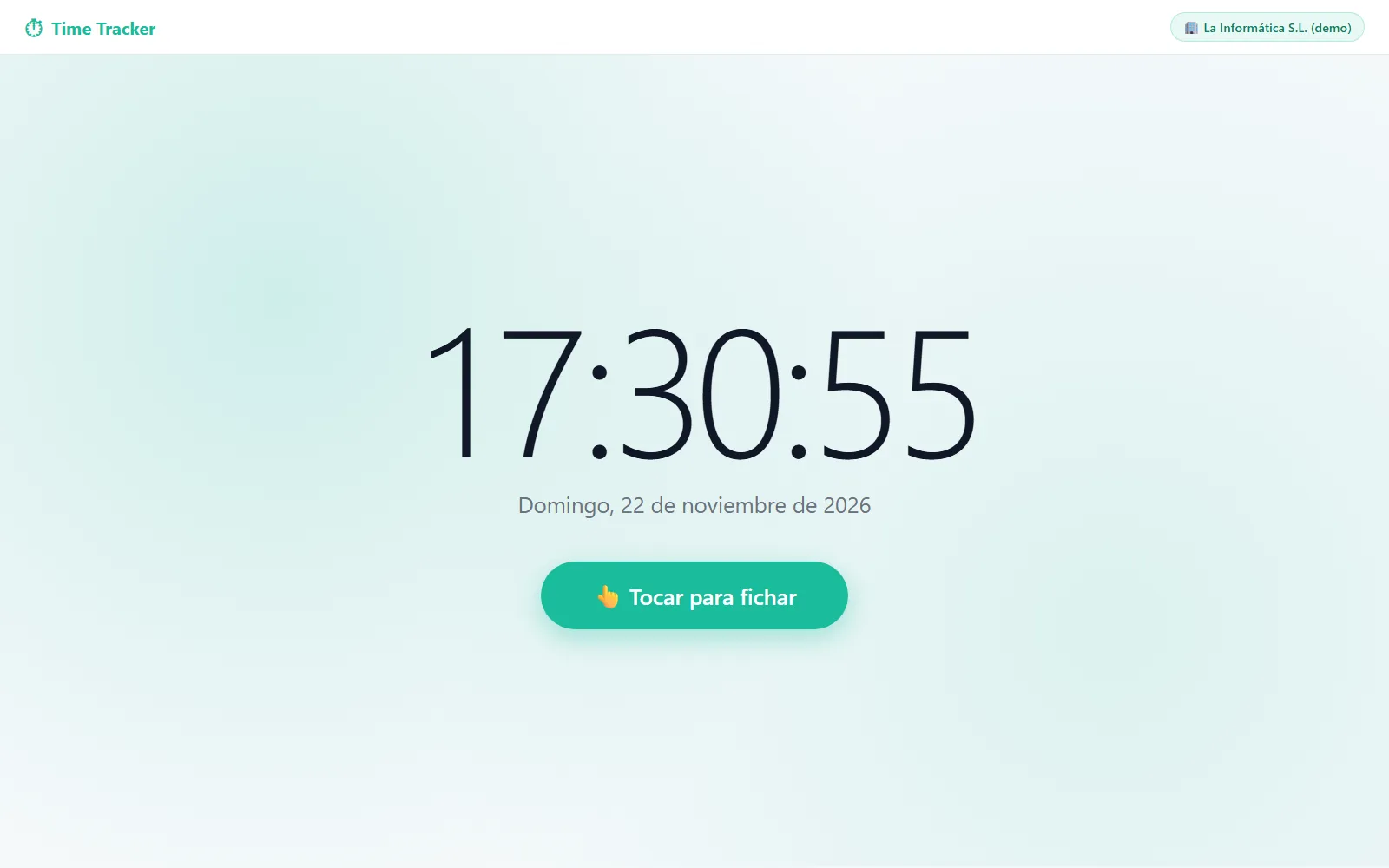
TimeTracker › Kiosk opens the Odoo kiosk: each person clocks in with their PIN or by showing the QR on their badge (button «Badge with QR» on the employee form).
How do I correct an attendance?
Closed attendances are sealed (Spanish working time record): open it and press «Rectify», enter the right times and the reason. Everything stays in Rectifications.
How do I request holidays?
In Clock in › My absences › «Request»: the reason, from and to. It stays pending approval.
How do I load public holidays?
TimeTracker › Configuration › Load Spanish holidays: the year, the region and the town.
How do I get the time record?
TimeTracker › Time record (PDF): choose the month and the employees; one page per worker with signatures.
Where do I keep employee contracts?
TimeTracker › Employee documents: category, date, file and expiry.
How do I link an employee to their user?
On the employee form › Settings, «Internal user»: when that person logs in, they clock in as that employee.
Clock in, breaks and out from the computer, the phone or a kiosk with PIN or QR; hours worked against the calendar; absences and holidays; Spanish public holidays; employee documents; sealed clockings with correction and consent, and a PDF time log to sign.
There are no comments for now.
to be the first to leave a comment.